RadioPro
RadioPro frequently asked questions.
6 FAQs
Do you have availability for purchase with shipping to Mexico?
YES!
We sell RadioPro in Mexico.
- Must be a Motorola or Kenwood authorized two-way radio dealer.
- Requires payment before shipping.
- Dealer is responsible for all duties and taxes.
Please contact us for a quote:
Does the RadioPro IP Gateway Support Gigabit Ethernet?
Yes.
The system uses a Gigabit Ethernet interface (1000 Mbps) and an asynchronous TCP socket architecture capable of high-throughput communication.
Actual throughput depends on deployment conditions and workload. In typical implementations, throughput can range from hundreds of Mbps under light load to lower sustained rates under heavier processing conditions.
It is important to note that RadioPro™ applications require relatively low network bandwidth (approximately 2.2 kBytes/s with audio compression, or 22 kBytes/s without), so Gigabit Ethernet provides ample capacity for reliable operation with significant headroom.
How do I update the OS of a RadioPro IP Gateway?
The RadioPro IP Gateway version 8.1.X operates on Windows 10 Enterprise 2019 LTSC with automatic updates disabled. To carry out necessary security maintenance updates, please adhere to the following procedure:
- Download and run ICU (IP Gateway Configuration Utility) (version 8.1.16+)
- Connect to the RadioPro IP Gateway. Verify that it is version 8.1.X.
- Download the latest version of the RadioPro IP Gateway Firmware for Windows 10. (version 8.1.X) Install the firmware upgrade using instructions on page 15 of the RadioPro IP Gateway Installation Guide.
- Reconnect to the RadioPro IP Gateway and verify that the Gateway and DNS settings on the "Network" Tab will enable communication with Microsoft's upgrade servers.
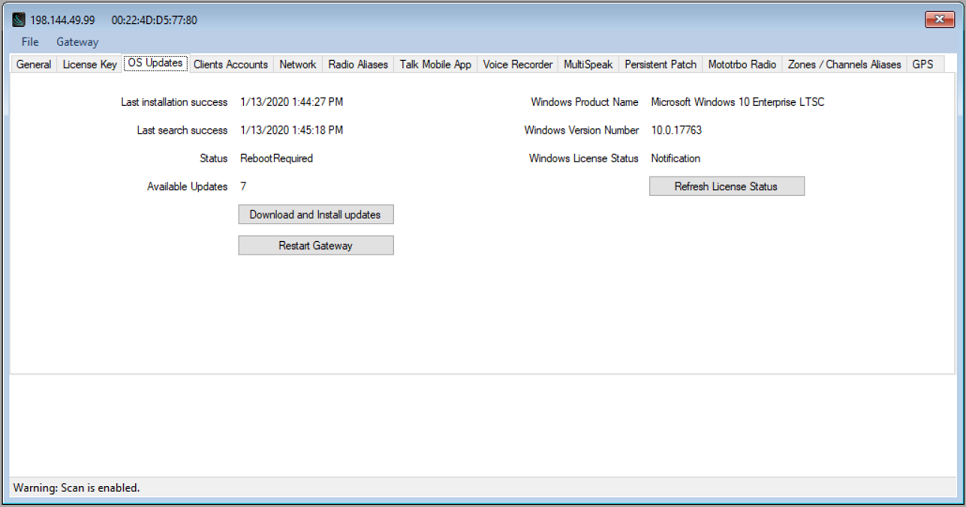
- Continue with these steps until the "OS Updates" Tab displays a “Status” of “NoUpdatesAvailable” and “Available Updates” shows 0: (Note: At the time of writing, this process required two iterations in less than 30 minutes)
- Re-establish your connection with the RadioPro IP Gateway.
- If the “Status” on the OS Updates Tab is “SearchingForUpdates”, “Downloading”, or “Installing”, wait for a few minutes before reconnecting to the Gateway to check the current status.
- If the “Status” on the OS Updates Tab is “UpdatesAvailable”, click on the “Download and Install updates” button.
- If the “Status” on the OS Updates Tab is “RebootRequired”, click on the “Restart Gateway” button.
- Repeat these steps as needed.
Why am I getting a Duplicate License error in RadioPro Dispatch?
What Causes the Error
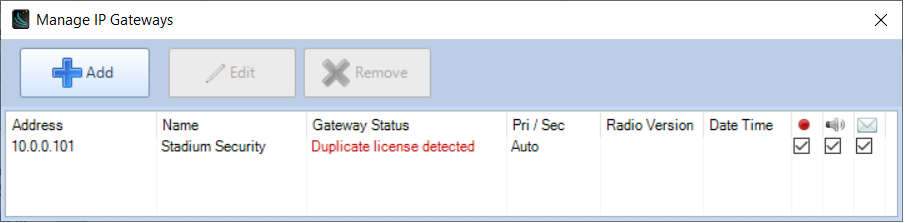
The cause of this error is that another RadioPro Dispatch PC is already connecting to this RadioPro IP gateway using the same license key.
Multiple Dispatch PCs CAN connect to the same RadioPro IP Gateway, but each RadioPro Dispatch PC is required to have it's own software license key.
With the purchase of each RadioPro Dispatch software license, you were provided with a software license key. This software license key can only be installed on one Windows PC.
RadioPro Dispatch Clients
RadioPro Dispatch is a multilinking client software, capable of making several simultaneous connections to multiple RadioPro gateways at once. Each PC requires Windows OS to install the Dispatch client but also needs a unique factory supplied software license key to be imported to the PC to customize it for use.
See Dispatch Clients in the RadioPro IP Gateway Installation Guide (p.11)
Dispatch Software License
If your organization has a RadioPro Dispatch software license installed concurrently on multiple PCs you may be using our software in a manner that violates the terms of the software license agreement that you agreed to upon installation.
We understand that it can be easy to unintentionally violate software licensing terms, and we are here to work with you to ensure that you can continue to use our software in a way that is both productive and legally compliant.
The following is an excerpt taken from the software license that is agreed to when RadioPro Dispatch is installed:
Upon payment of the Appropriate License Fees, You may:
For RadioPro Dispatch Software:
(a) install the Dispatch Software onto Your PC and up to one backup PC,(b) make one copy of the Dispatch Software solely for backup purposes, provided that You reproduce, unaltered, all proprietary notices on or in the copy,
(c) run the Dispatch Software on one Dispatcher PC at a time,
(d) connect the Dispatch PC to IP Gateway units, up to the number of rightfully licensed Connections as specified in the Dispatch Hardware Protection Device and Software Key.
For IP Gateway Software: run the IP Gateway Software on the IP Gateway unit on which it is was installed by CTI; and
For ICU Software:
(a) install the ICU Software onto one or more of Your PCs,(b) run the ICU Software to configure one or more of Your IP Gateway units manufactured by CTI,
For Solo Software:
(a) install the Solo Software onto one or more of Your PCs,(b) run the Solo Software on one or more PCs to connect to one of Your IP Gateway units, up to the number of rightfully licensed User Connections configured on that IP Gateway unit,
You may not and shall not permit others to:
(a) copy the Licensed Software (except as expressly permitted above),
(b) run more than one copy of the Dispatch Software concurrently,
(c) use the Solo Software to concurrently connect more PCs than the rightfully licensed number of User Connections configured in an IP Gateway,
(d) use the Dispatch Software to concurrently connect to more than the rightfully licensed number of IP Gateways as specified in the Software Key,
(e) use the Dispatch Software, Solo Software or ICU Software with hardware devices or software not made by CTI that emulate or mimic the functionality of the IP Gateway,
(f) modify or translate any Licensed Software,
(g) modify, translate, reverse engineer, decompile, disassemble or otherwise attempt (i) to defeat, avoid, bypass, remove, deactivate, or otherwise circumvent any hardware or software protection mechanisms in the Licensed Software or Dispatch Software, including without limitation any such mechanism used to restrict or control the functionality of the Licensed Software, or (ii) to derive the source code or the underlying ideas, algorithms, structure or organization from the Licensed Software, or
(h) distribute, rent, transfer or grant any rights in the Licensed Software (except as expressly permitted above) in any form to any person without the prior written consent of CTI.
This license is not a sale. Title and copyrights to the Licensed Software and any copies made by you remain with CTI and its suppliers.
RadioPro™ Software License Agreement
Why am I getting a bonk when pressing the PTT button in the subscriber list.
Reasons for Failed Calls
In RadioPro versions 8.3.1+, 9.3.1+ this is how to determine the reason for failed calls:
- In RadioPro Dispatch, choose “Help”->”Logs”. This should open %programdata%\CTI Products\RadioPro Dispatch\
- Open the logs folder.
- Locate and open the most recent file named “FailedCalls YYYY-MM-DD.txt” with a text editor.
Example:
10:08:20.590 AM DEBUG Call Failed:
    Source=Gateway,
    Reason=Can't private call when in a group call hangtime

10:15:49.303 AM DEBUG Call Failed:
    Source=Radio,
    Reason=Call initiate group call failed:
        INVALID_TARGET_ADDR
[Source=Client] Failure Reasons:
- Already transmitting
- Unable to transmit because another client has control of the radio.
- Not connected to a server
- Client is not connected to a gateway.
[Source=Gateway] Failure Reasons:
- Server ended call
- The gateway ended an active transmission unexpectedly.
[Source=Radio] Failure Reasons (Motorola):
- Call initiate group/priv call failed: <failure Rason>
- The Motorola XPR Radio is reporting that an attempted group or private KeyRadio has failed. The failure code will have additional information.
- No Response from radio
- The Motorola XPR radio is not correctly responding to key-up requests.
Other Failure Reasons:
- The Motorola speaker microphone may be connected. The RadioPro IP Gateway may not be able to correctly key-up a mobile radio if a microphone is plugged in.
- The channel may be in use or in "hang-time" when keying up.
- The item in the Subscriber List may be incorrectly defined in ICU:
- As a Group Call when it should be defined as a Private Call.
- As a Private Call when it should be a Group Call.
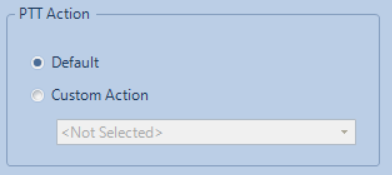
- The Subscriber List PTT button may have a custom action assigned rather than the Default action.
- (The default action is to PTT the item selected in the Subscriber List)
Please verify that "Default" is selected as the PTT Action for the Subscriber List.
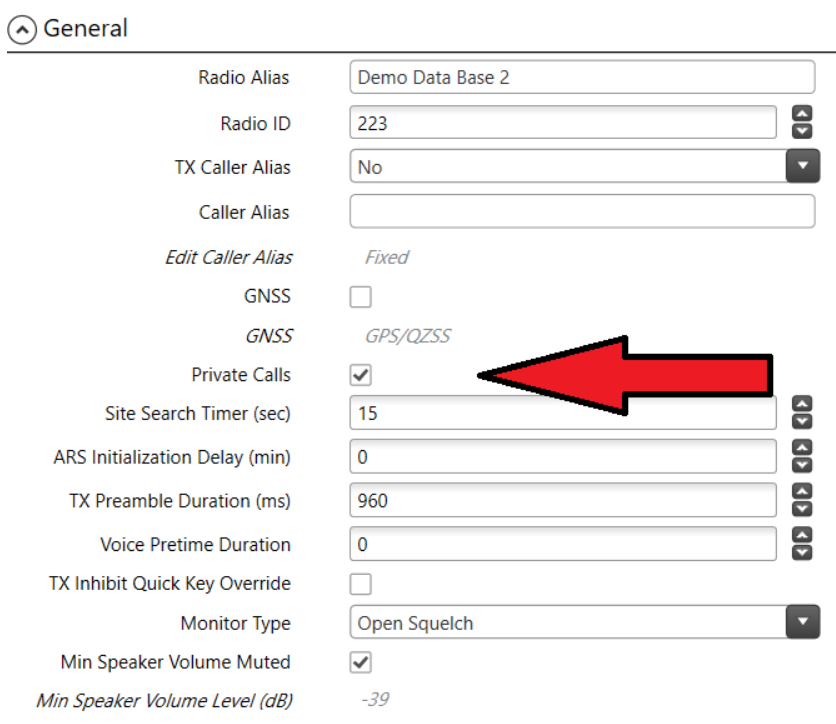
- Private calls may be disabled in the Motorola XPR5550e radio.
Please verify that Private Calls is CHECKED.
Why doesn't the RadioPro Talk app show Zones?
For Motorola MOTOTRBO systems, the RadioPro Talk app does not display zone names.
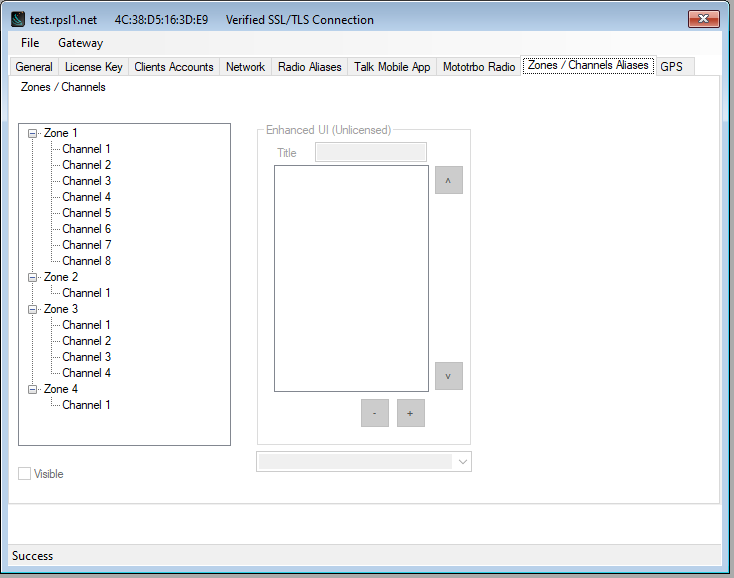
Instead, RadioPro Talk presents a single list of all available channels. Users can still select (channel steer) to any channel that is marked as visible in the system configuration.
Channel visibility is controlled in the IP Gateway Configuration Utility (ICU).
ICU Configuration Example
RadioPro Talk View
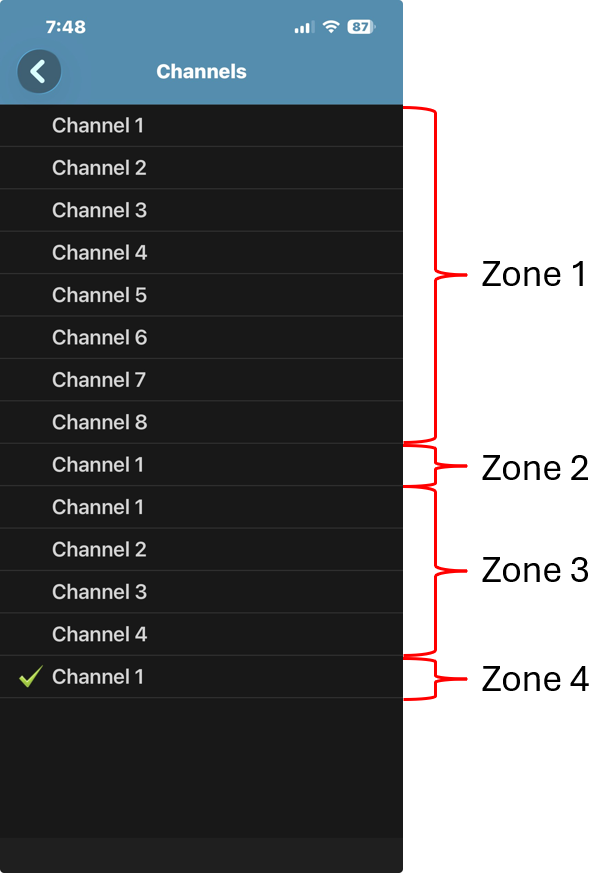
Why Zones Aren’t Shown
RadioPro Talk is designed to be simple and easy to use, especially for mobile users.
Showing zones would add extra steps and complexity, so the app combines everything into a single channel list.
How to Identify Zones (If Needed)
If you need to distinguish channels by zone, you can:
- Edit Channel Aliases in the ICU
- Include the zone name in the channel name
- Example: Zone 1 - Dispatch, Zone 2 - Tac 1
More Advanced Zone Control
Zone-based organization is fully available in:
- RadioPro Dispatch
- RadioPro Solo
These applications provide more detailed control and are better suited for desktop or advanced users.
Additional Information
See: RadioPro IP Gateway Installation Guide for Motorola MOTOTRBO for additional information: